

How to AFK on Minecraft Bedrock 24/7 (with your PC off)
Updated October 2026 · 5 min read
To AFK on Minecraft Bedrock 24/7 with your PC off, sign in to afkclient.pro, add a Bedrock account with Microsoft login, connect it to your server, and leave the cloud session running. The bot stays online from our servers - so you keep playtime, presence, and chunk activity - while your computer is off. No Minecraft launcher download is required on the machine you shut down.
Why AFK on Bedrock from the cloud?
Bedrock players often leave a phone, console, or Windows copy of Minecraft open overnight just to stay on a server. That drains battery, blocks the device, and drops when Wi-Fi blips. A cloud Bedrock connection moves that job off your hardware: you authenticate once with Microsoft, connect to the server address, and the account stays online around the clock.
afkclient.pro supports both Java and Bedrock from the same dashboard. Pick the Bedrock account type when you add the account - do not use Premium (Java) if your gamertag is a Bedrock / cross-play Microsoft account.
What Bedrock AFK can (and cannot) do
Bedrock accounts can do almost everything Java accounts can:
- Available: stay online 24/7, auto-reconnect, chat, inventory, server menus (for example
/shop), scheduled and world change commands, Discord webhooks, your own macros, Auto Eat and the 3D view (Pro). - Java only: Sell Axe, Auto Sell and the DonutSMP spawner automations.
- You need your own proxy: Bedrock accounts need a proxy that supports UDP, for example from IPRoyal. The included and dedicated proxies don't work with Bedrock yet.
If you need Sell Axe or Auto Sell, use a Premium (Java) account on a Java / Geyser-friendly server instead - see Sell Axe on DonutSMP and AFK on DonutSMP.
Step-by-step: Bedrock AFK in a few minutes
1. Sign up and start for free
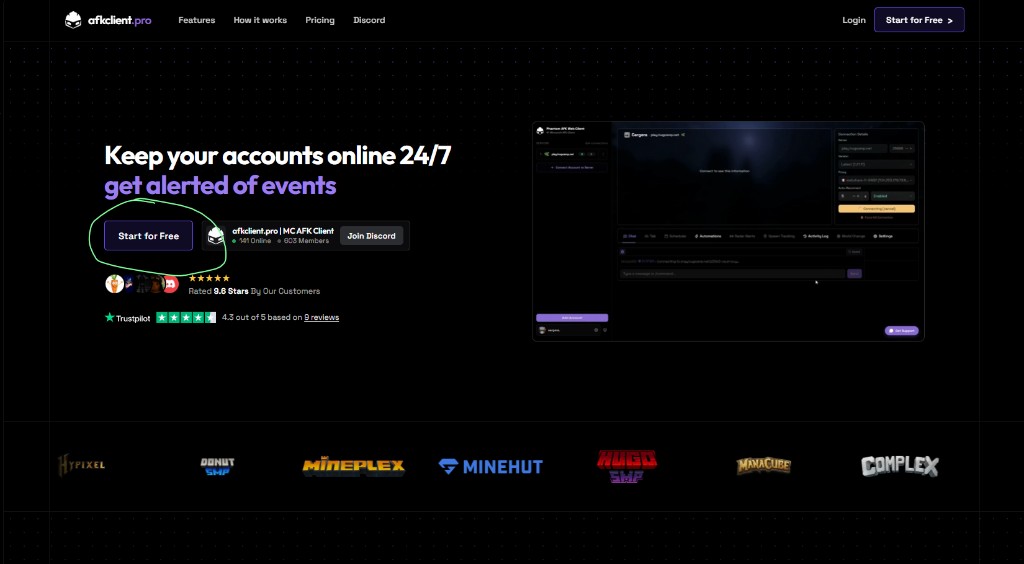
Open afkclient.pro and click Start my free trial (or go straight to /login). Sign in with Discord to create your dashboard.
2. Get access: plan or free trial
Claim the free 1-day Pro trial (no credit card) or pick a plan on Pricing. Once access is active you can add accounts and keep them connected 24/7.
3. Add a Bedrock account
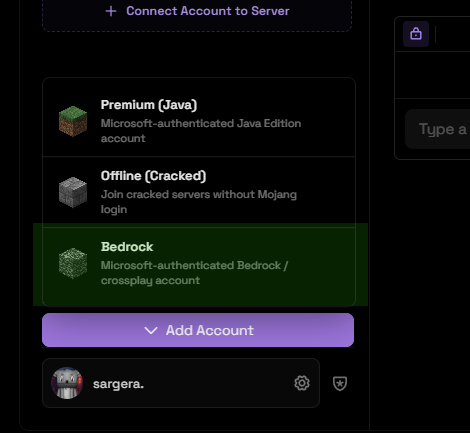
In the sidebar, open add / connect account and choose Bedrock - Microsoft-authenticated Bedrock / crossplay. Do not pick Premium (Java) or Offline for this flow.
4. Sign in with Microsoft
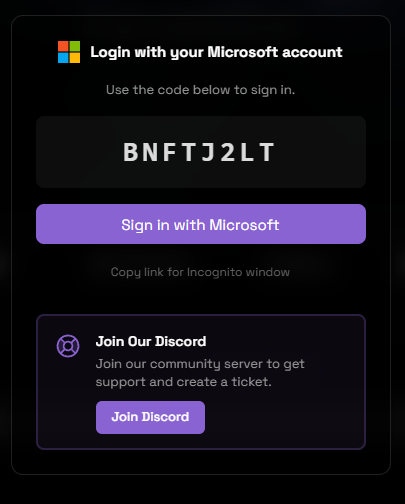
You will see a short code and a Sign in with Microsoft button. Open the Microsoft page, enter the code, and approve the account. Your password goes to Microsoft only - never to afkclient.pro. If login fails, use "Copy link for Incognito window" or open a ticket from Discord support.
5. Connect to your server
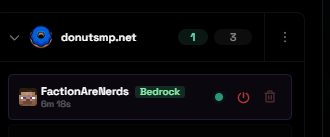
Add the server host you play on (for example donutsmp.net for DonutSMP cross-play) and connect. Bedrock uses the Bedrock / Geyser path (default port 19132 when needed). When it works, the account shows a green online status, a connection timer, and a green Bedrock badge next to the username.
6. Leave it running with your PC off
Once the Bedrock account is online, close the browser tab and shut down your computer if you want. The session keeps running in the cloud. Check back later from any device to confirm uptime, read chat, or disconnect.
Tips for reliable Bedrock AFK
- One session only - log out of Minecraft on your phone/console/PC before connecting here, or the server may kick the other session.
- Position first - if you care where you stand (AFK pool, farm, claim), join once from a normal Bedrock client, stand in place, then disconnect and reconnect via afkclient.pro.
- Auto-reconnect - leave it on so restarts and brief outages bring the account back without you babysitting.
- Proxies - add your own UDP proxy before connecting. The included and dedicated proxies don't work with Bedrock yet.
Can I AFK on Bedrock with my phone only?
Yes for control. You manage the dashboard from a phone browser; the actual Minecraft connection still runs on afkclient.pro's servers, not on your phone. That is different from leaving the Bedrock app open in the background.
Is Bedrock AFK allowed?
Rules vary by server. Some networks welcome AFK presence; others limit idle accounts or automation. Check the rules and Discord for the server you join before running any AFK tool. afkclient.pro is not affiliated with Mojang, Microsoft, or individual SMP networks.
Keep your Bedrock account online 24/7
Start free, link a Bedrock account, and connect in a few minutes.
Start my free trial